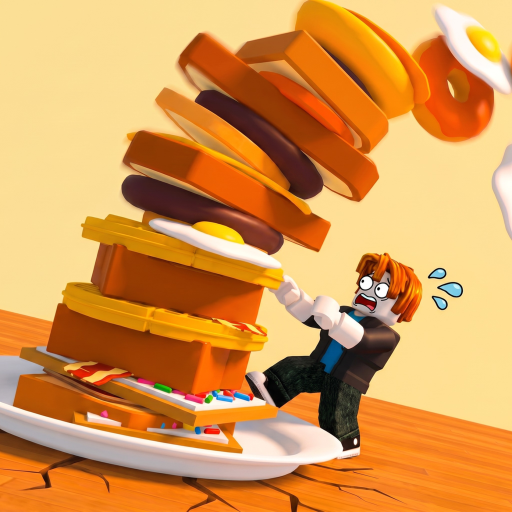
The Giant's Breakfast Redeem Codes Step by Step
Find the Codes button, enter a verified string, and claim rewards without common redeem mistakes.

Redeeming codes in The Giant’s Breakfast follows the same pattern as most modern Roblox tycoons: open the in-game Codes or Gifts panel, paste an exact string, confirm, then check your cash or inventory for the reward. This guide walks through the practical steps, where to look on your plot, and how to troubleshoot failures—especially useful while the game is still early and the Codes button may move between UI updates.
Before you redeem anything, confirm the code on the Codes Hub. This wiki does not invent strings. If the hub says no verified codes are live, there is nothing safe to enter yet.
Before you open the Codes menu
- Launch The Giant’s Breakfast from the official Roblox experience page (Zidiam Studios).
- Join a normal server—lobbies support up to six players online.
- Wait until your plot and HUD fully load. Redeeming during the loading splash often fails silently.
- Keep a verified code ready on a second screen or clipboard. Codes are usually case-sensitive.
If you are brand new, skim How to Play so you know where the lever, griddle, toaster, and tower sit relative to the menus.
Typical Roblox codes UI pattern
Most cooking and stack tycoons place Codes in one of these spots:
- A Codes, Rewards, or Gifts button on the left or right HUD
- Inside the Shop or Store window as a tab
- Under a hamburger / settings menu with Twitter bird or gift icon styling
- A floating gift box near the spawn pad after an update
In The Giant’s Breakfast, start at the main HUD buttons near your cash display, then check Shop tabs if you do not see a dedicated Codes control. After major patches, re-check the same spots—the button rarely disappears forever, but it can move.
Step-by-step redeem flow
- Click the Codes (or equivalent Gifts/Rewards) button.
- Tap the text field so the mobile keyboard or desktop cursor appears.
- Paste the code exactly. Avoid adding spaces before or after the string.
- Press Redeem, Claim, or Submit.
- Read the response toast: success, already redeemed, expired, or invalid.
- Close the panel and verify the reward in your cash counter or inventory.
- Spend useful cash on the next lever pull so the reward becomes tower height instead of idle balance.
If the UI offers a history list, glance at it to confirm the claim registered on your account.
Mobile vs desktop tips
On phone, paste from your notes app rather than typing long milestone strings. Auto-correct loves to change codes into dictionary words. On desktop, paste with Ctrl+V (or Cmd+V) and do not press Enter unless the field treats Enter as submit—some UIs need the Redeem button specifically.
Fullscreen mode can hide toast messages at the top of the screen. If nothing seems to happen, exit fullscreen briefly and redeem again only if the first attempt clearly failed.
Common error messages and fixes
Invalid / Unknown code
- Wrong game (a sandwich tycoon code will not work here)
- Typo or extra space
- Code not released yet or already rotated out
Already redeemed
- Your account claimed it earlier; codes are usually once per player
- A sibling account on the same device may still redeem if the code allows it
Expired
- The window closed; check the Codes Hub for replacements
No Codes button visible
- UI still loading, or you are in a cutscene/tutorial lock
- Soft-rejoin the server
- Confirm you are in the correct experience, not a copycat place
Success toast but no reward
- Refresh the cash label by buying or selling something small
- Rejoin once; inventory sync can lag after a claim
- Confirm the reward was cash versus a food item waiting in the purchase queue
Safe redeem habits
Only enter codes from creator Discord, the Roblox group, or this wiki after verification. Never follow links that ask for your password, backup codes, or Robux giveaways outside Roblox. Codes never require you to install a separate APK or join a third-party launcher.
If a friend shares a screenshot, compare the spelling character by character with the Discord original. Capitalization and number-letter swaps (O vs 0, I vs 1) cause most false “invalid” results.
After a successful redeem
Put the reward to work:
- Cash → pull the lever for higher-value food when you can afford it
- Food items → sort them to the correct station (Cooking Stations)
- Temporary multipliers → cook and stack aggressively while the timer runs (Stack Tower)
- Event tokens → spend inside the active event shop (Events Guide)
For long-session planning, pair redeems with Earn Money Fast and protect AFK progress via Offline Earnings. Rarity targets live on Celestial Food. Cross-check patch notes on Updates if a redeem UI changed overnight.
When there are no codes yet
Early after the 2026-07-16 release, many players open this page expecting a filled table. Until Zidiam Studios publishes a verified string, practice the cook-stack loop instead of hunting fake lists. Bookmark the Codes Hub and check Discord after each content drop—milestone codes often appear without much warning.
Redeeming is a thirty-second chore; cooking well for the next hour is what actually raises your money-per-second graph.
Frequently Asked Questions
Quick answers about cooking, stacking, and wiki navigation.
Where is the Codes button in The Giant's Breakfast?
Check the main HUD near cash, then Shop or settings tabs. Soft-rejoin if the UI is still loading or a tutorial is locking menus.
Are codes case-sensitive?
Usually yes. Paste the exact string from Discord or the Codes Hub and avoid extra spaces.
Why does my code say invalid?
Common causes are typos, expired strings, or codes meant for a different Roblox game. Confirm the listing on the Codes Hub first.
Can I redeem the same code twice?
Almost never. Once-per-account is the default. Already redeemed means your account already claimed it.
Do I need to be in a private server to redeem?
No. Redeem in a normal online lobby (up to six players). Private servers are optional and not required for codes.